Set Up GlobalProtect VPN for Windows
Follow these instructions to install the GlobalProtect VPN app on your Windows computer.
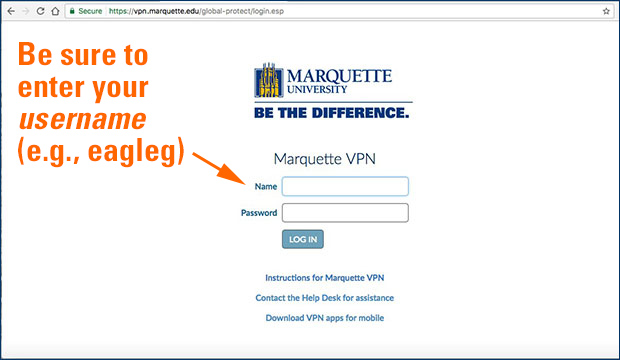
- Go to vpn.marquette.edu
- On the first page, enter your Marquette username (e.g., eagleg — and not email address or name) and password.
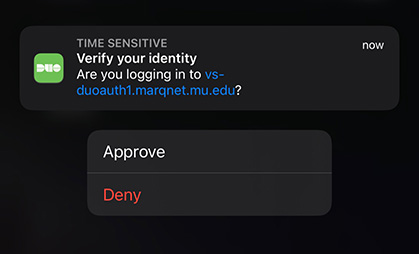
- If you are registered with Duo multi-factor authentication with IT Services, you receive an automated phone call or see the app prompt below on your mobile device (iOS is shown). If using the app, tap Approve. If a phone call, press 1 to approve.
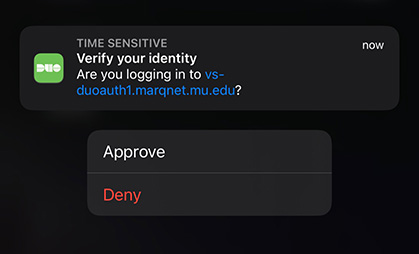
Note: If you are not registered with IT Services for Duo multi-factor authentication, please refer to our Duo registration documentation in order to do so.
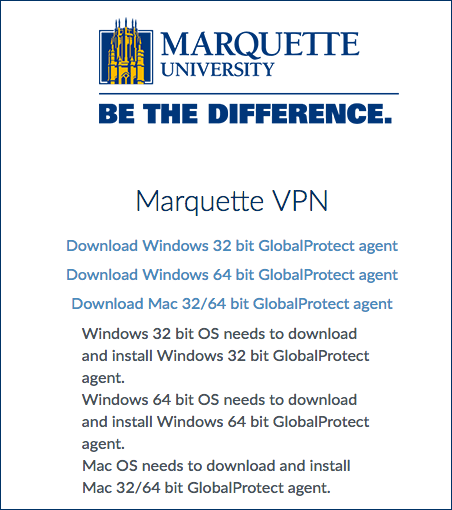
- Once you log in, download options appear. Please choose the appropriate option for your system.
Note: If you're not sure if your Windows computer needs the Windows 32-bit version or the Windows 64-bit version, please follow these Microsoft instructions.
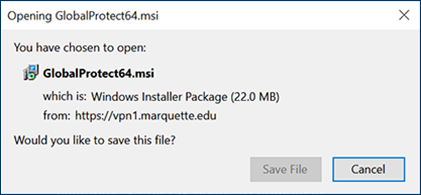
- If you are using Google Chrome, the client downloads and appears in the bottom left corner of the window. Click or tap when the download is complete.

If you are using Firefox, you are prompted to save the file. Click or tap Save File. The file saves to your Downloads. Open when finished.
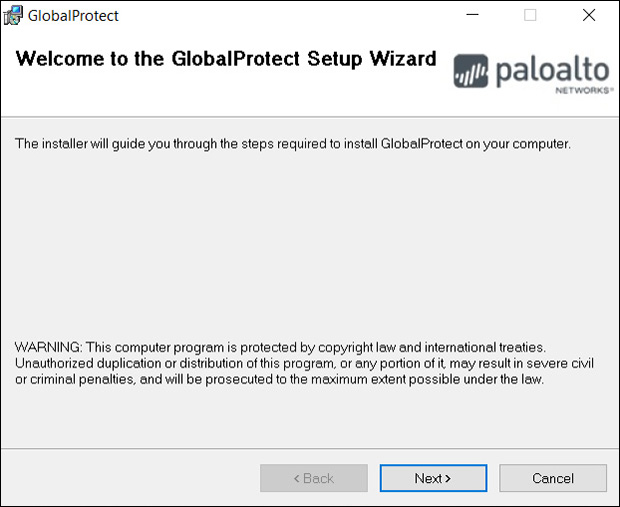
- Walk through the setup wizard by clicking or tapping Next for each window.
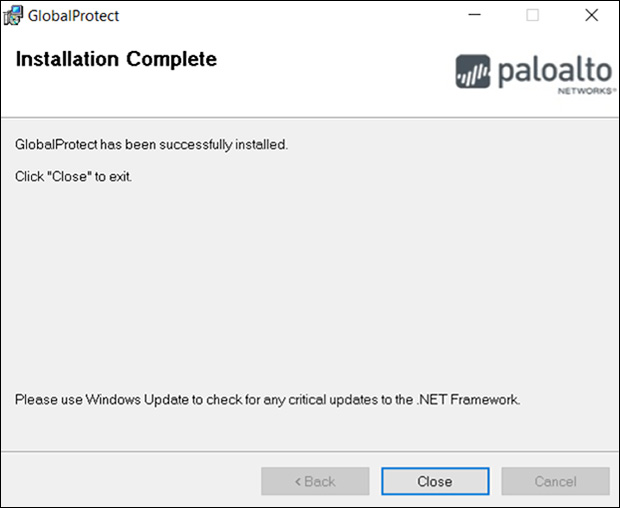
- When the installation is complete, select Close and the GlobalProtect will open. You may need to minimize your browser window to see the GlobalProtect prompt.
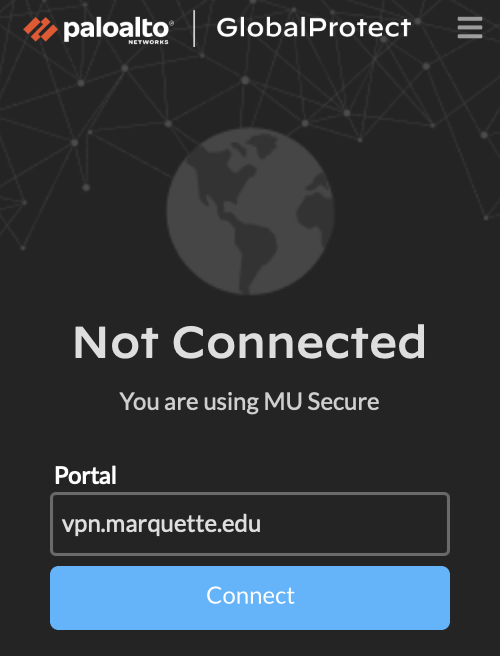
- Once opened, GlobalProtect asks you for a portal address. Type vpn.marquette.edu into this prompt. Then click or tap Connect.
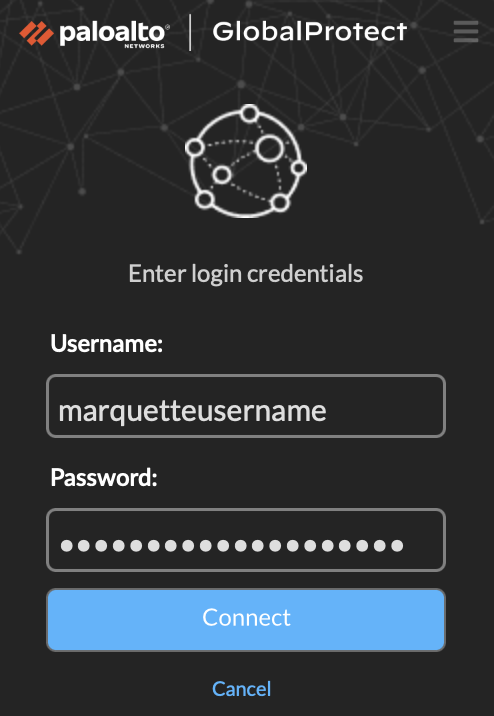
- You receive a prompt for your Marquette username (e.g., 1977goldeneaglei — and not email address) and password. Enter your credentials and click or tap Connect.
- If you are registered with Duo multi-factor authentication with IT Services, you receive an automated phone call or see the app prompt below on your mobile device (iOS is shown). If using the app, tap Approve. If a phone call, press 1 to approve. You are now connected to VPN.
Note: If you are not registered with IT Services for Duo multi-factor authentication, please refer to our Duo registration documentation in order to do so.
- For subsequent use of GlobalProtect, select the Start Menu then type GlobalProtect until you see the program appear. Click or tap the program to launch it.
Note: There is no need to return to the installation website to use VPN unless you need to reinstall software.