
SEARCH RAYNOR
Looking for a book, article, or video? Visit the library search →
Use the library search to find physical or digital items owned/licensed by Marquette’s Raynor Library and Law Library. Results include all formats (books, articles, videos, and more) and items available through many of our databases.
Explore the topics below to get started with the library search.
Sign in to view complete results, request items from other libraries, save search results and search terms, and view and renew items checked out to you.
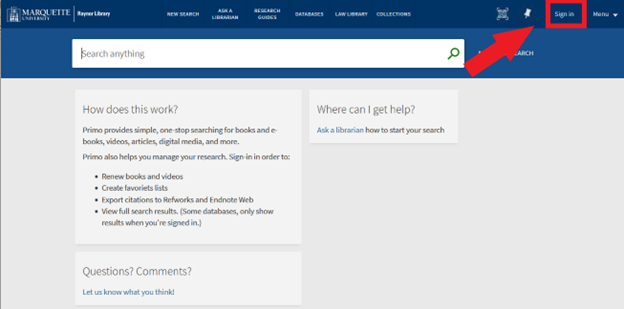
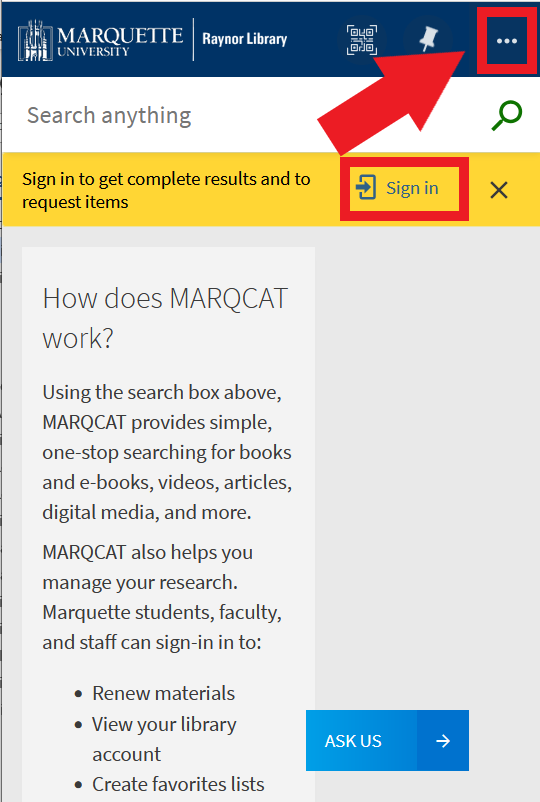
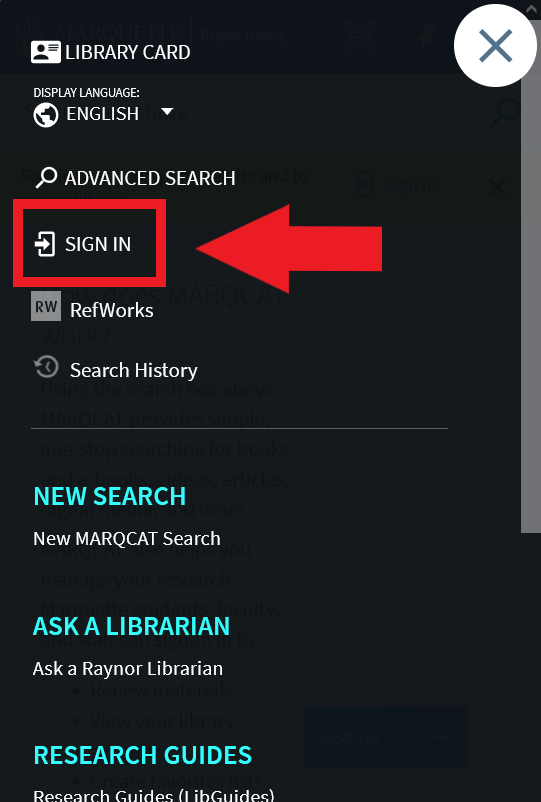
Click the sign in button at the upper right of the screen and click "Marquette University Users". You may need to enter your Marquette email address and password.
Desktop view:

Mobile view:
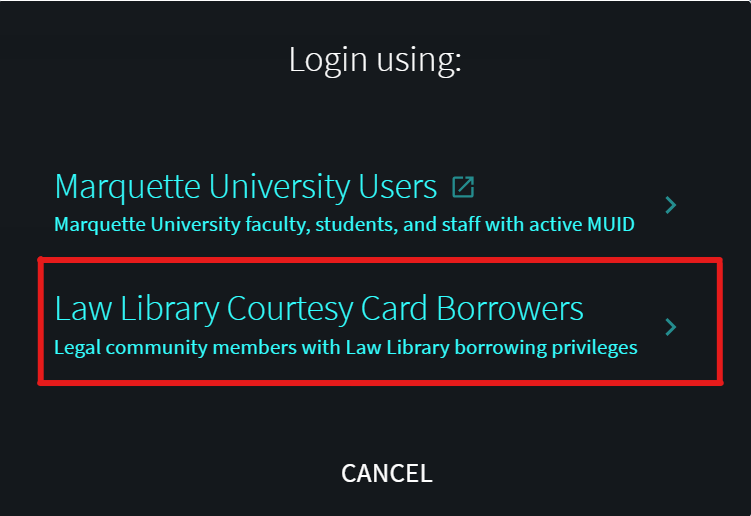
Click the sign in button at the upper right of the screen and click "Law Library Courtesy Card Borrowers". Enter the credentials provided to you by the library.
Desktop view:
For users of Raynor Library, please contact the Library Services Desk at (414) 288-7555.
If you're a law library card holder or public patron of the law library, please contact the Law Library.
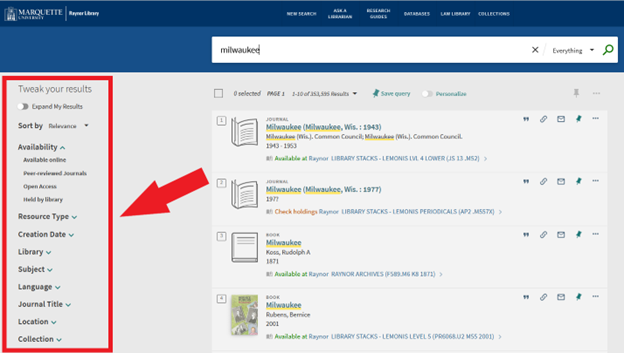
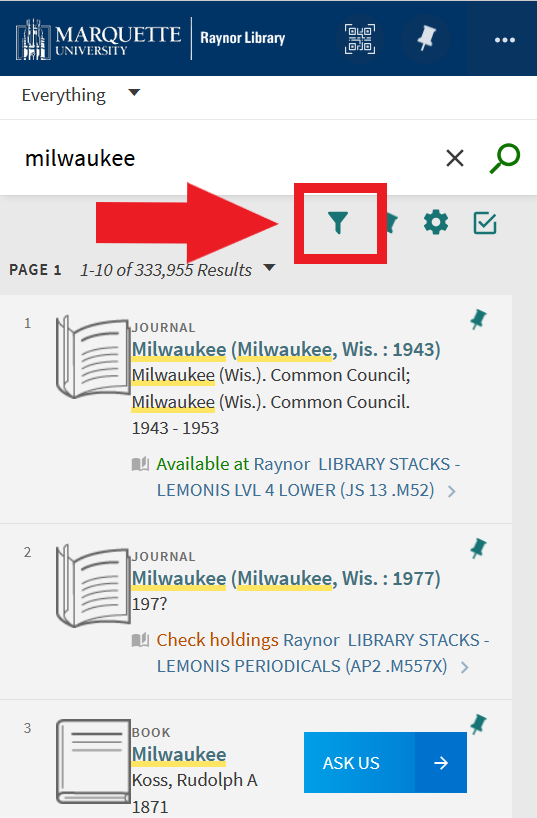
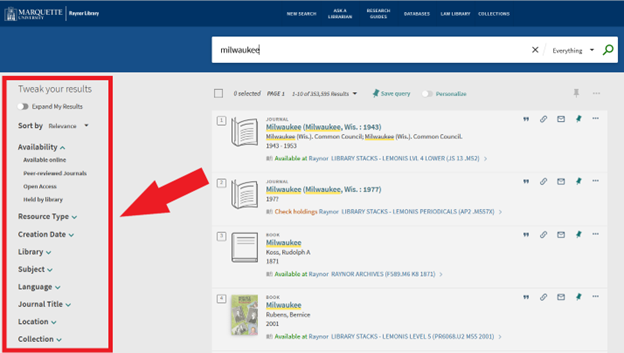
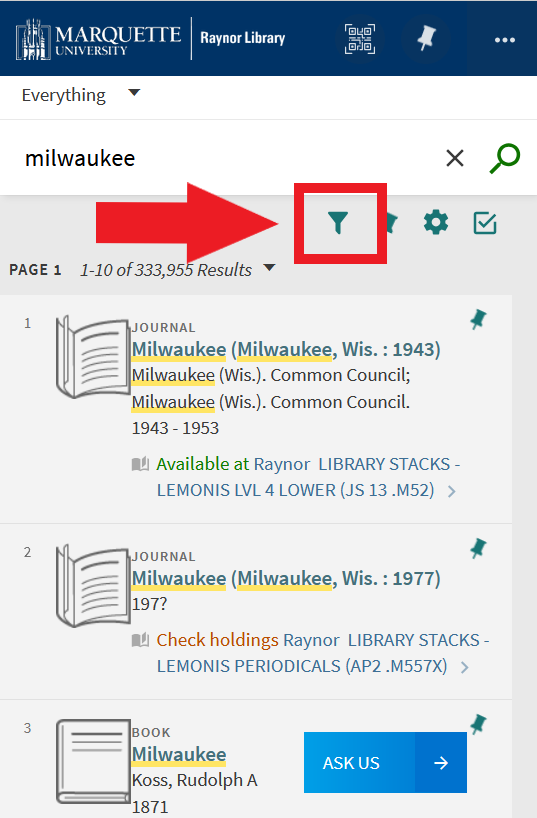
Search for a topic or title, then locate the Tweak Your Results section.
Desktop view:
Mobile view:
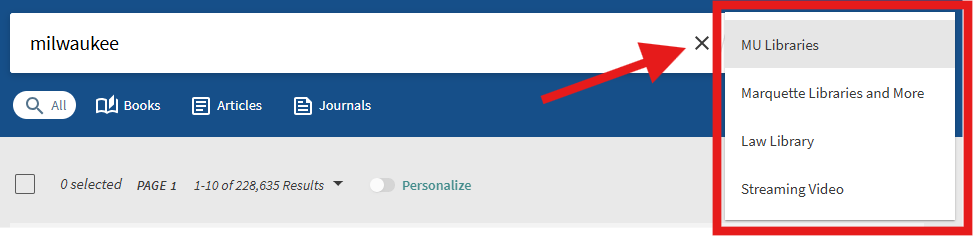
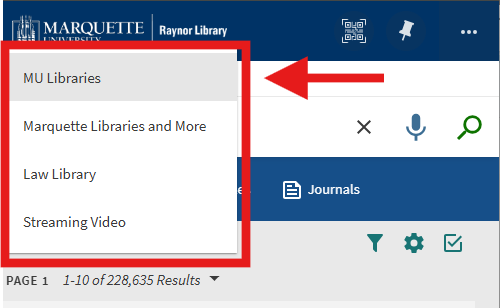
The default search is MU Libraries. This searches what is available here at Marquette. You can also expand your search to include Marquette Libraries and More (items at Marquette, plus items at partner libraries, and other items offered by publishers and vendors), or search the Law Library (items owned by the Law School), or Streaming Videos.
Desktop view:
Mobile view:
Under Tweak your results, select Resource Type, then Articles. For articles published in peer-reviewed journals, under Availability, select Peer-reviewed Journals.
Under Tweak your results, select Resource Type, then Books. Under Availability, select Available online.
Under Tweak your results, select Resource Type, then Videos. For DVDs, under Availability, select Held by library.
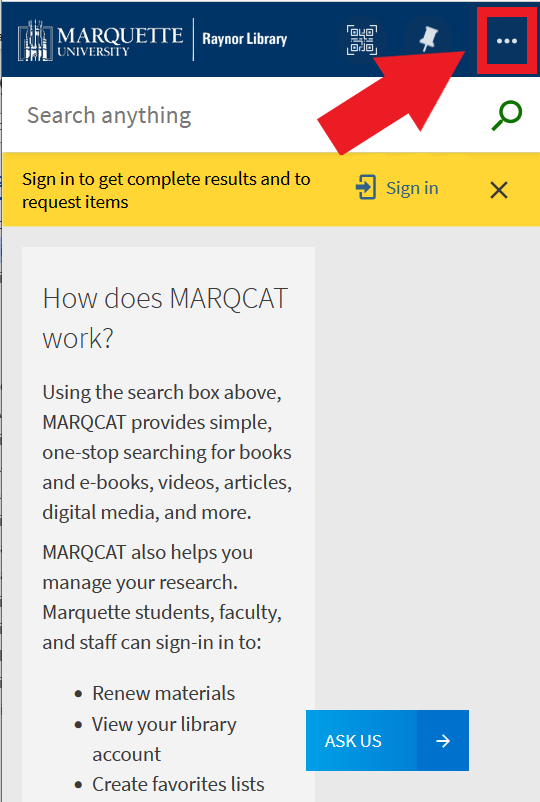
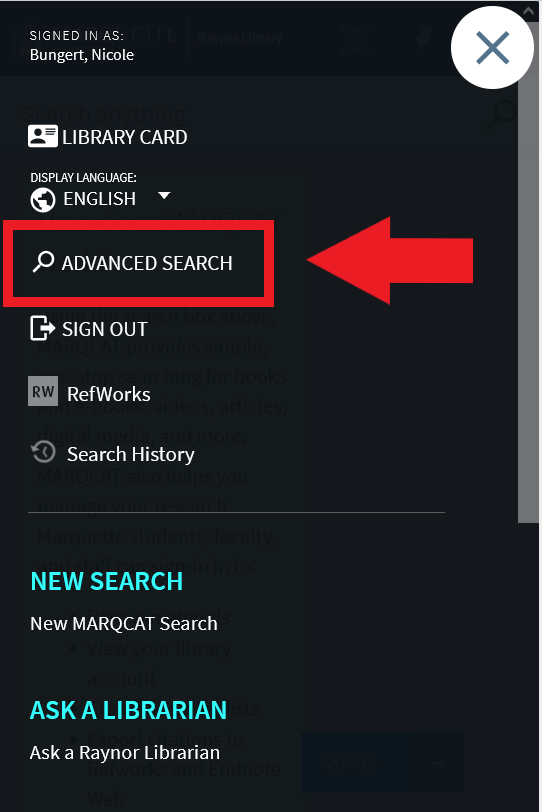
Select Advanced Search.
Desktop view:

Mobile view:
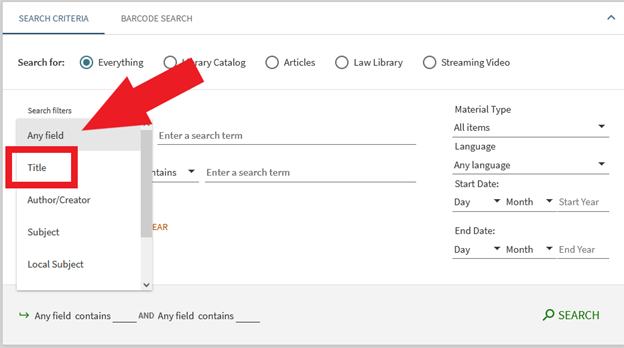
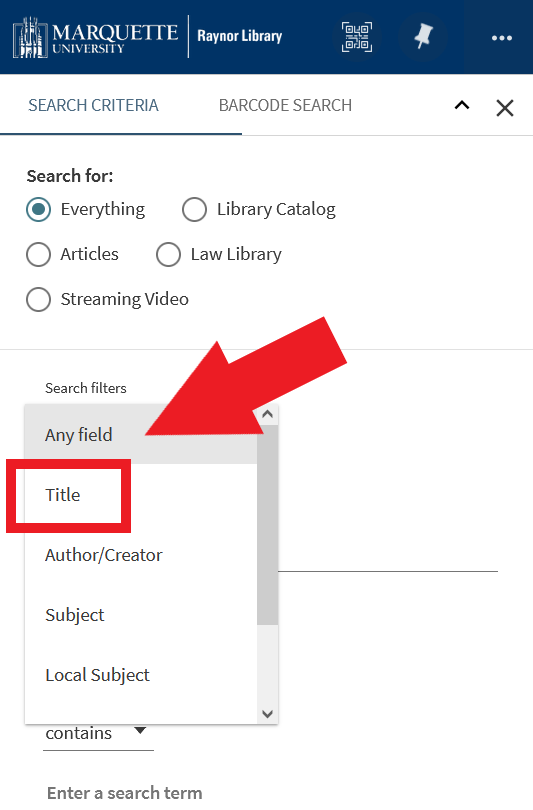
Change the search filters drop-down menu from Any field to Title.
Desktop view:
Mobile view:
Type the title of the item into the Enter a search term field.

Search for a topic, title, or author. Locate the Tweak your results section and select the filter for Language.
Desktop view:
Mobile view:
In your results list, select Get PDF, Read Online, or Available Online.
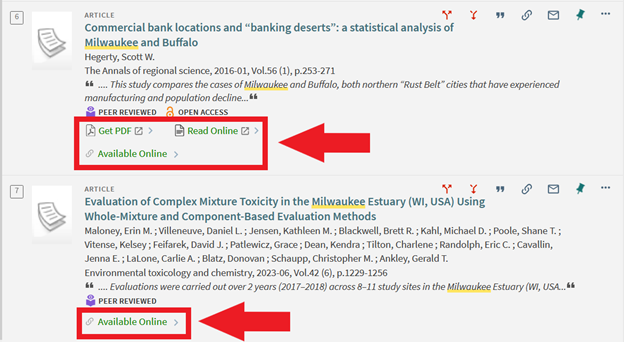
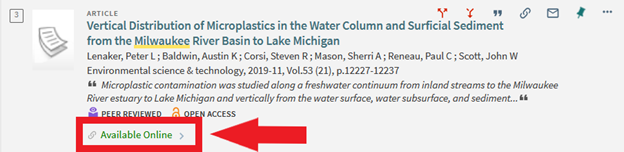
Get PDF and Read Online link directly to the article. Available Online displays a list of options for full text access. Check that the date of publication matches the date range available for full text access.
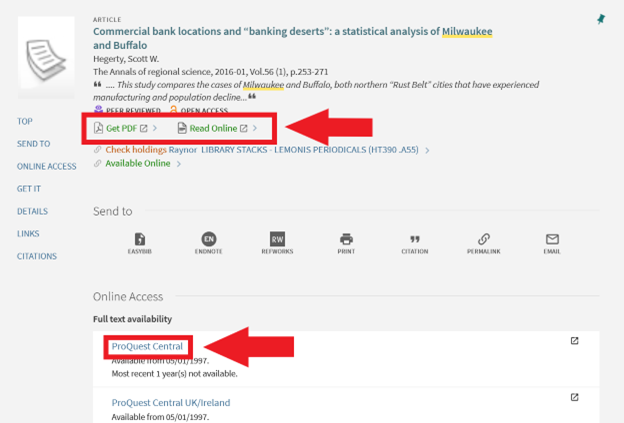
Search for a topic, title, or author. For the result you want, click Available Online.
Highlight and copy (ctrl+c) the title of the article.
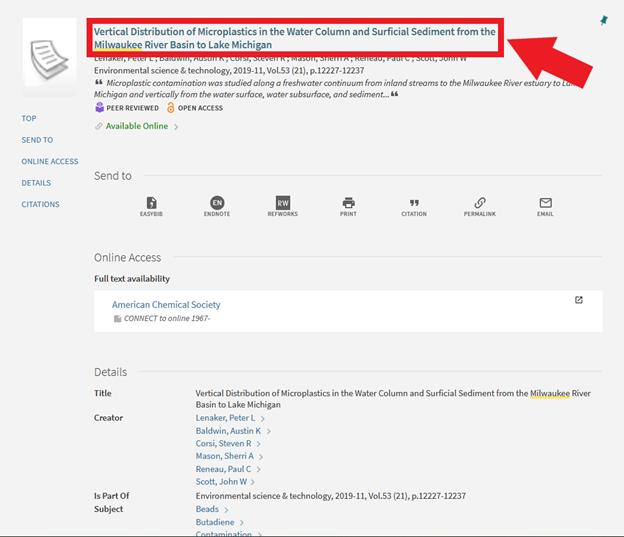
Locate the Full text availability section and click one of the links.

If you are taken to the site for the entire journal rather than the specific article, find a way to search within the journal. The interface may look different than the one shown below; locate a search box.
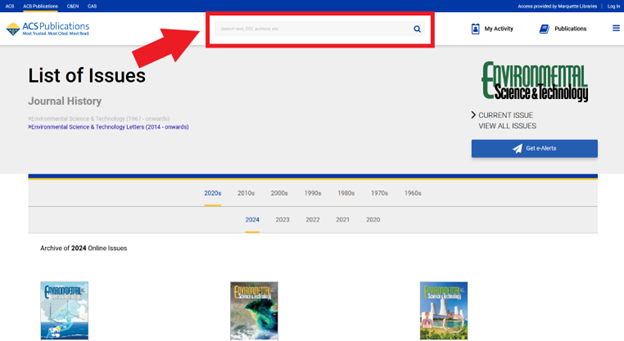
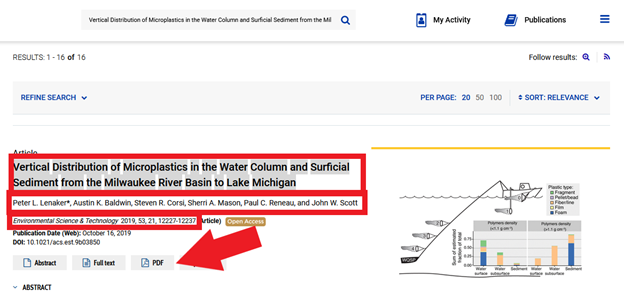
Paste (ctrl+v) the title of your article into the search box.

Identify the matching article by confirming title, authors, journal, date, volume, and issue. Access the full text by clicking Full Text, HTML, or PDF.
Search by keyword, title, or author. From your list of search results, select the item you want.
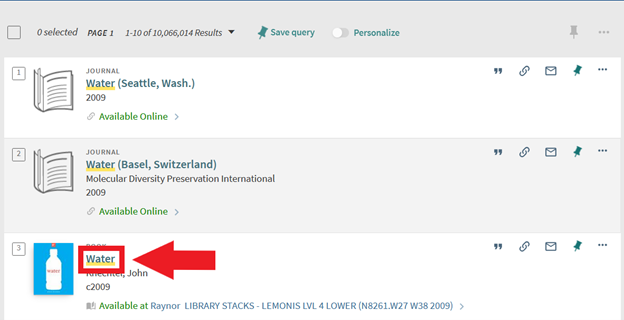
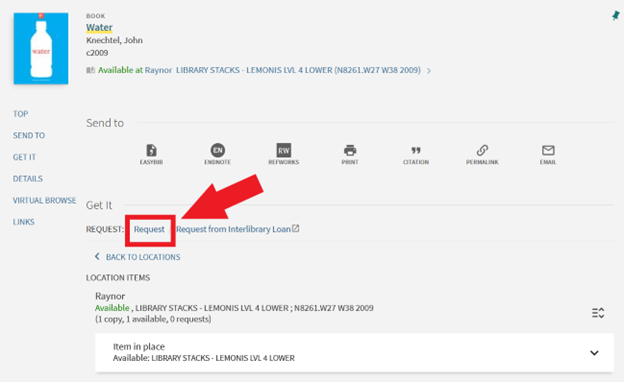
Locate the Get It section and choose Request.
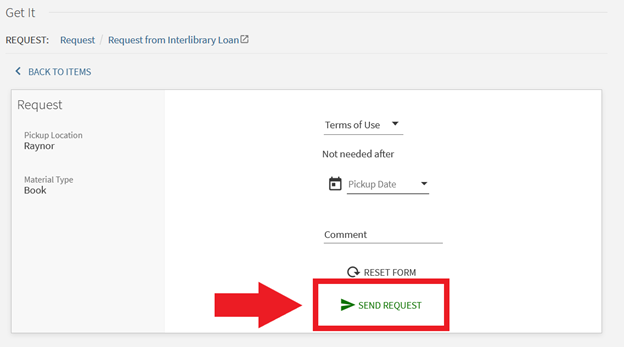
Click Send Request.
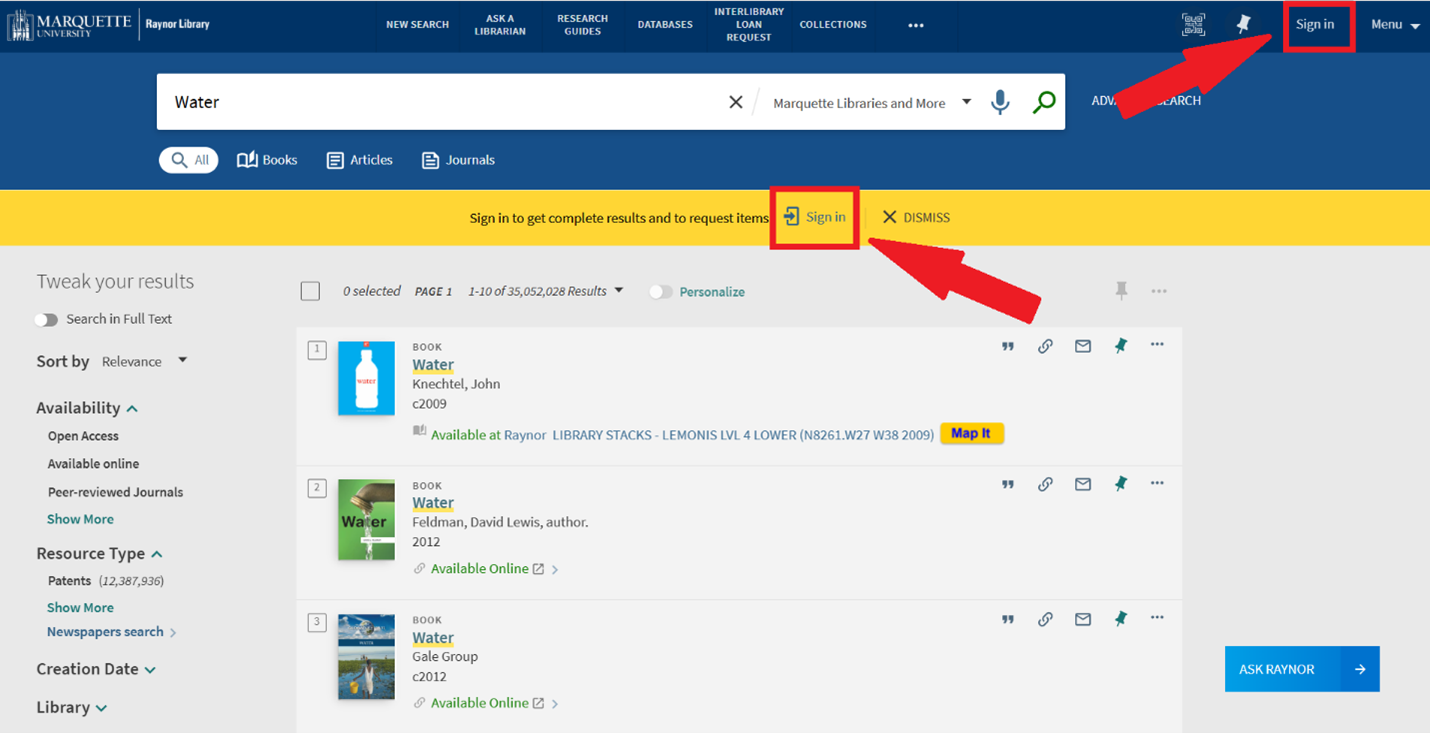
Sign in using your Marquette account. Your full name will appear in the upper right corner once you are signed in.
Search by keyword, title, or author. From your list of search results, select Request this item.
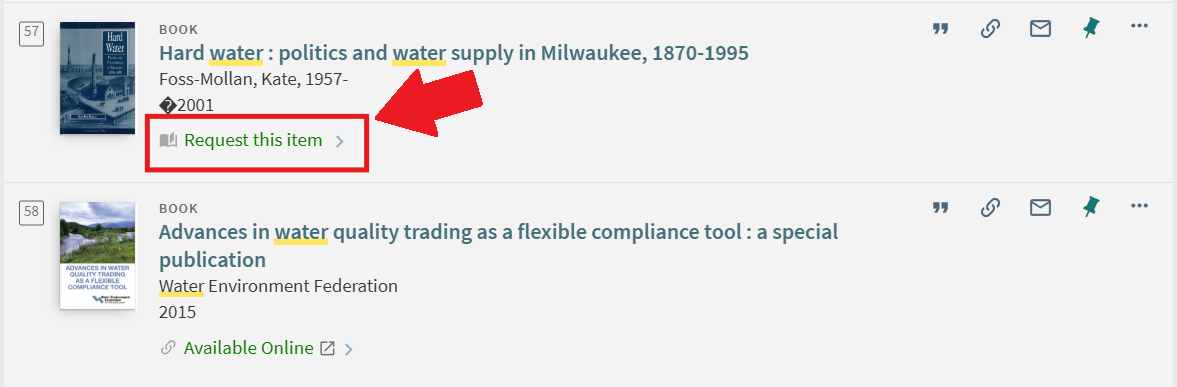
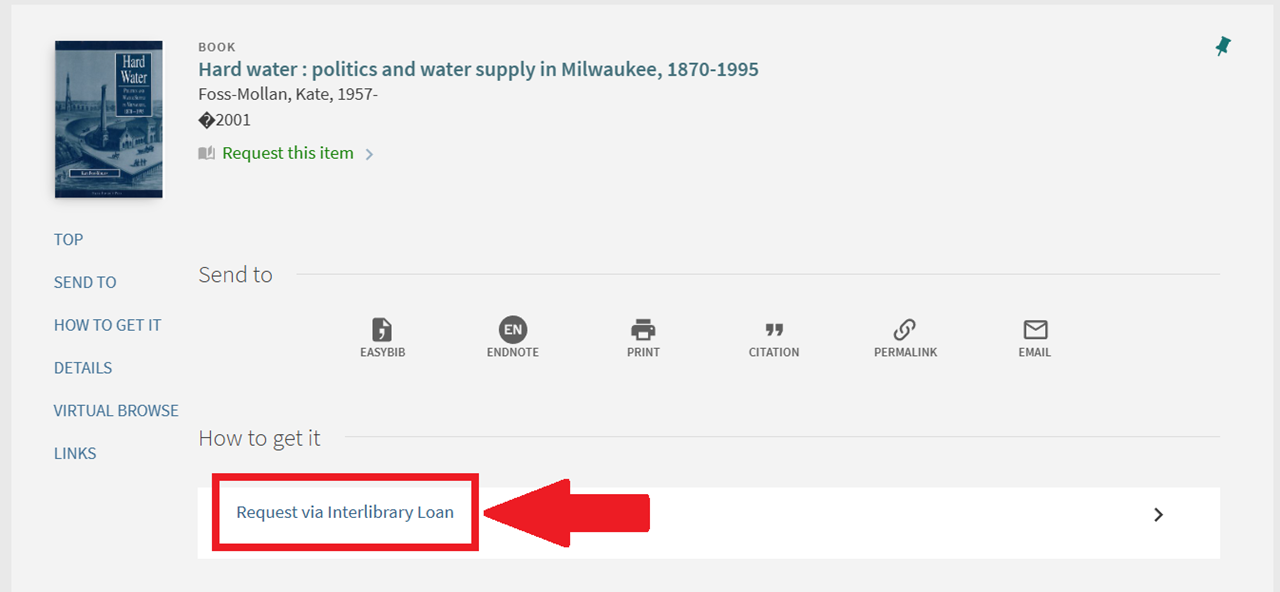
Alternatively, from the full record for the item, locate the How to get it section and select Request via Interlibrary Loan.
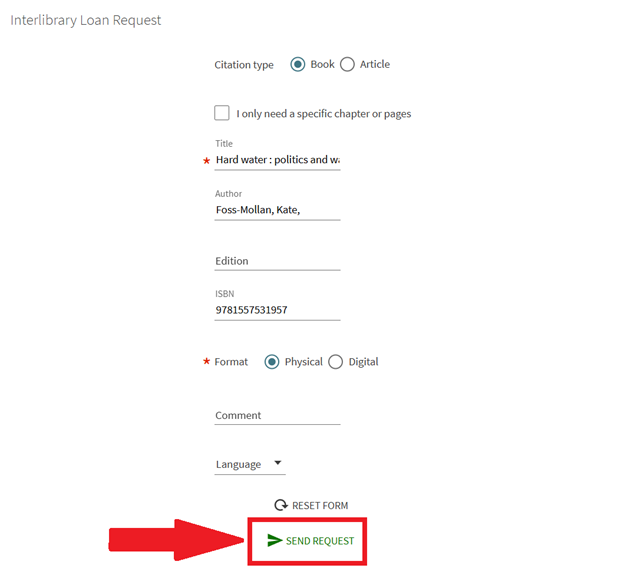
The form will automatically fill with information about your selected item. Click Send Request.
Sign in using your Marquette account. Your full name will appear in the upper right corner once you are signed in.
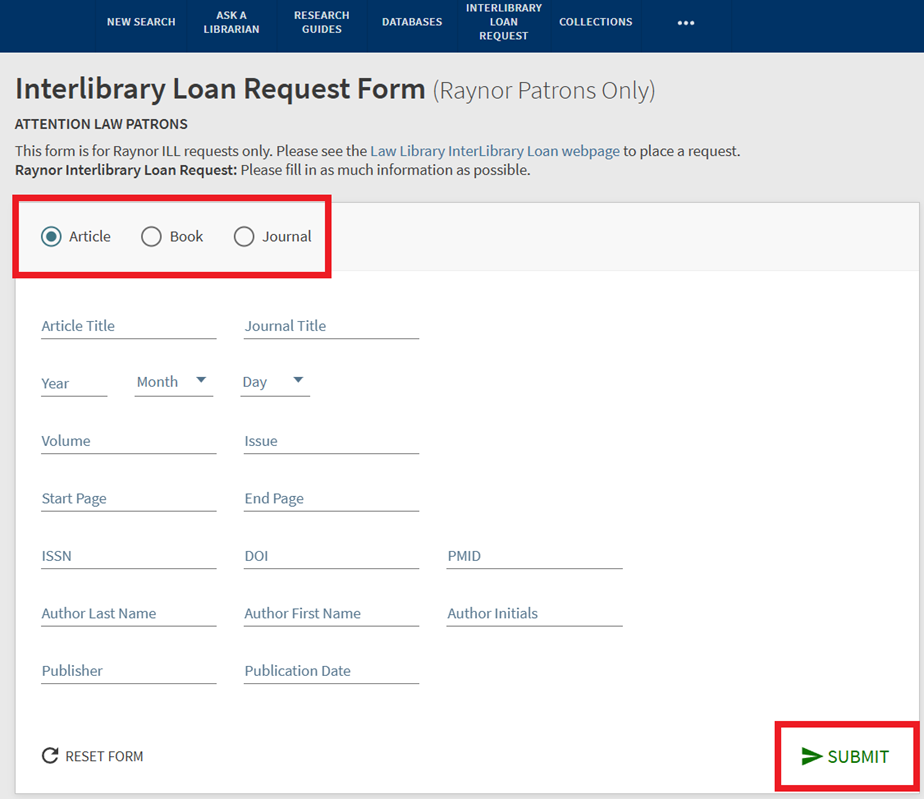
Select Interlibrary Loan Request in the top menu bar.

Select the type of item you're requesting (article, book, or journal). Fill in as many details as you have. Click Submit.
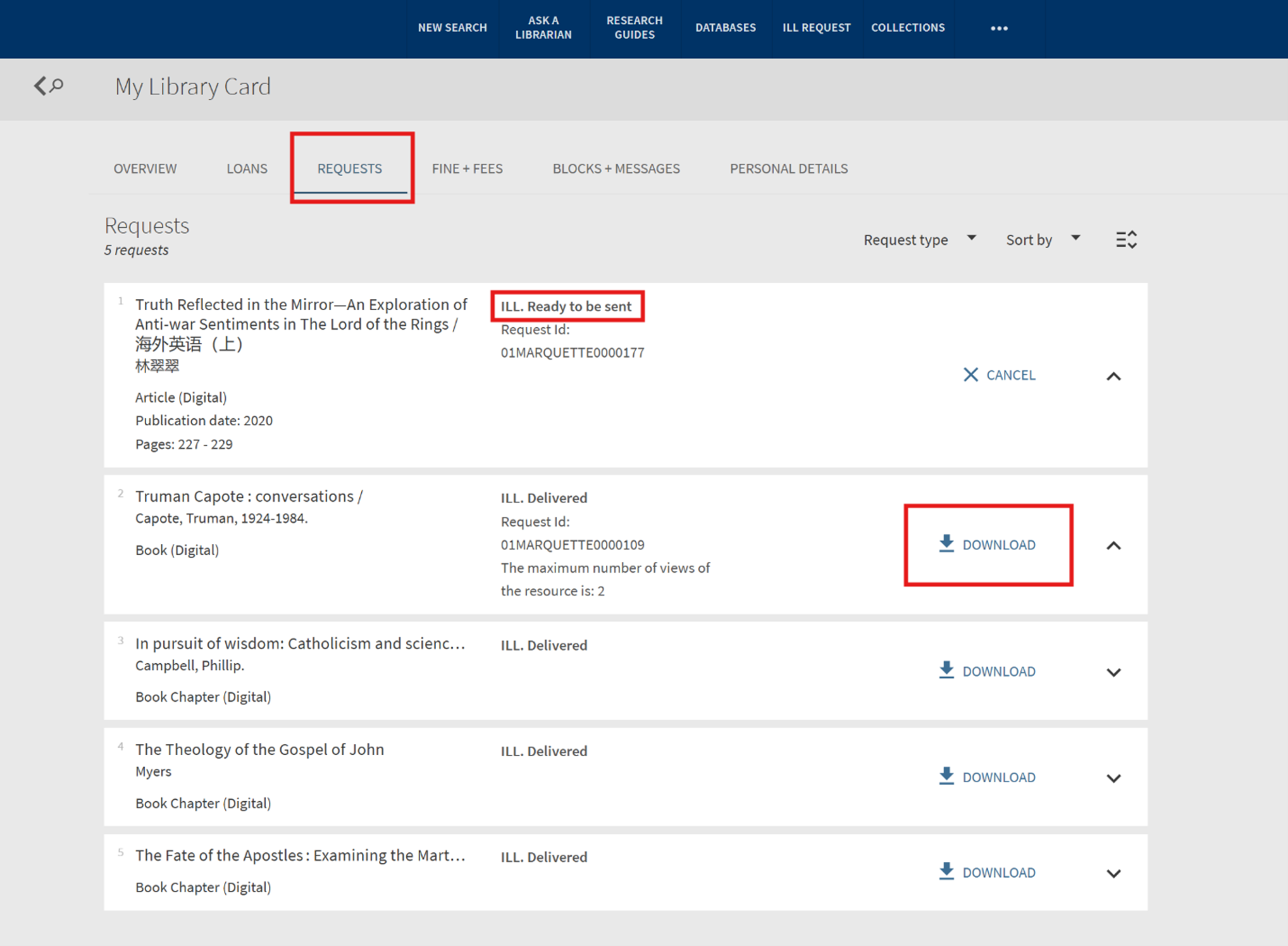
After you have received an email indicating your item is ready, sign into your library account using your Marquette email and password. Locate the Requests section. Items ready to view or pick up will be listed "ILL Delivered". To view digital items, select Download. To pick up physical items, visit the Library Services Desk in Raynor Library.
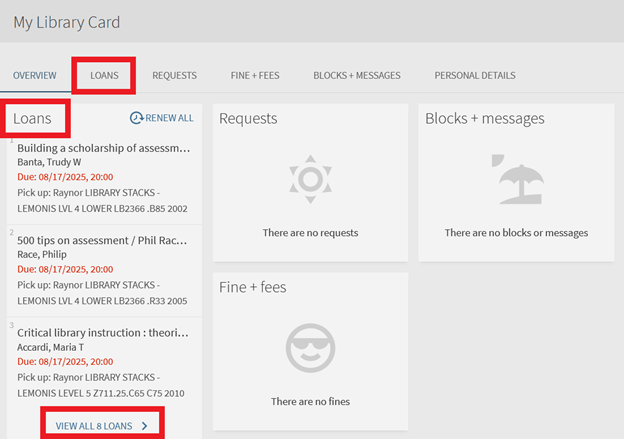
Log in to your library account using your Marquette email and password. Locate the Loans section and select Renew All or View All Loans.
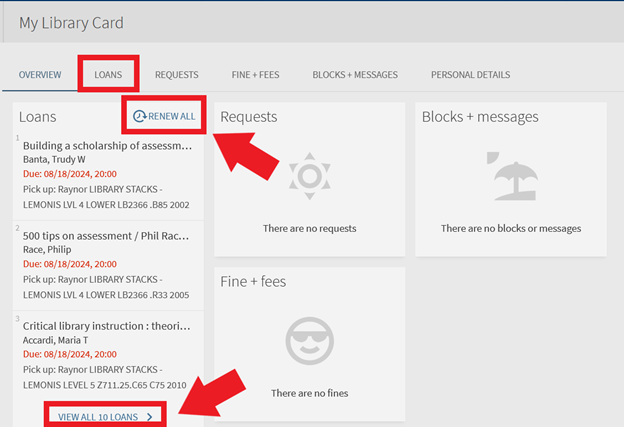
If you select Renew All, you will see a confirmation message when your items are renewed.
If you select View All Loans, you will have the option to select individual items you want to renew. Use the checkbox to select items to renew.
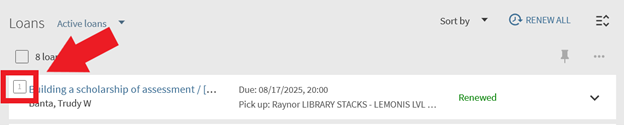
After you select one or more items, click or tap Renew Selected.

You will see a confirmation message when your items have been renewed, and your due date will update.
Click the chain symbol in your search results. Don’t copy the link from your browser’s address bar. That link may not work after your session is over.
Desktop view:
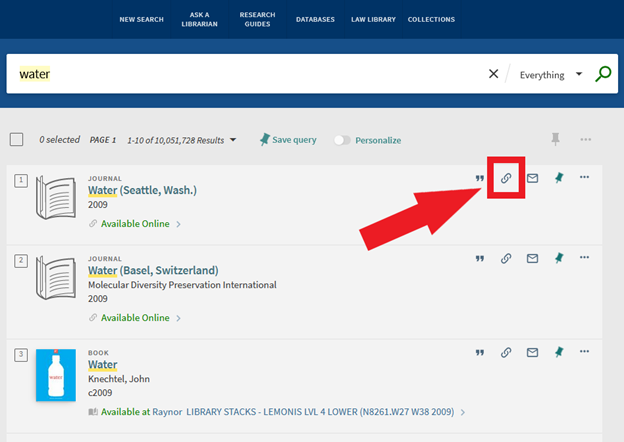
Mobile view:
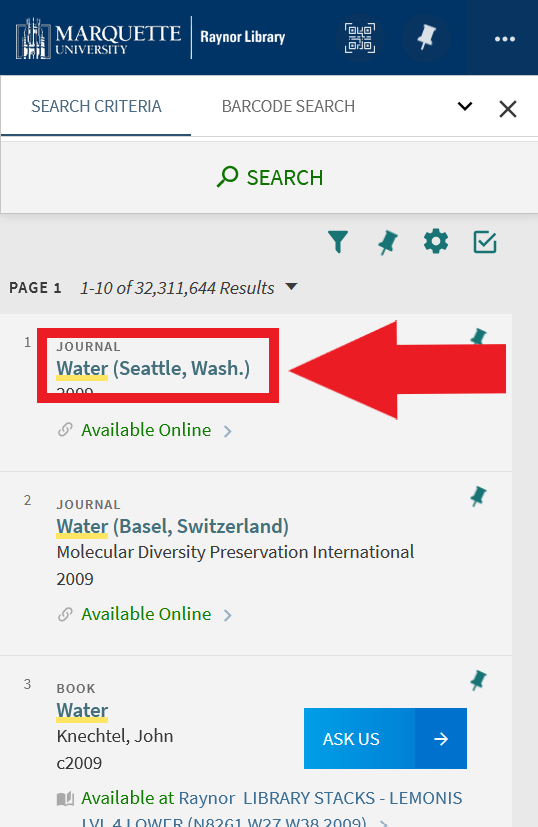
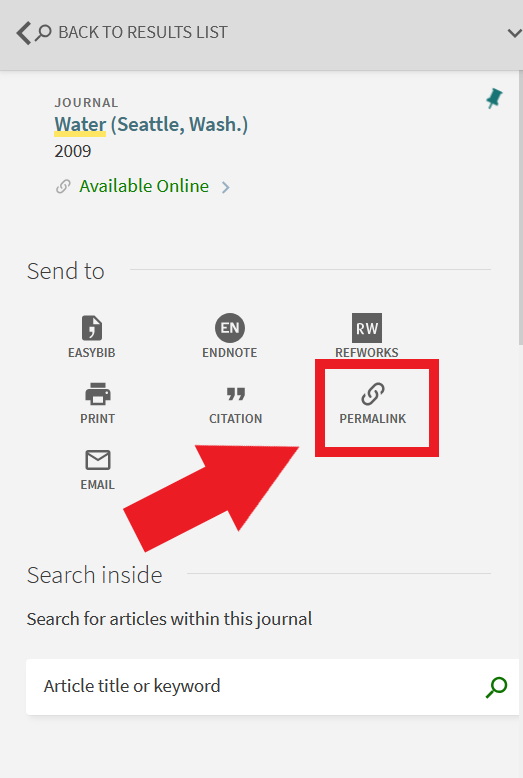
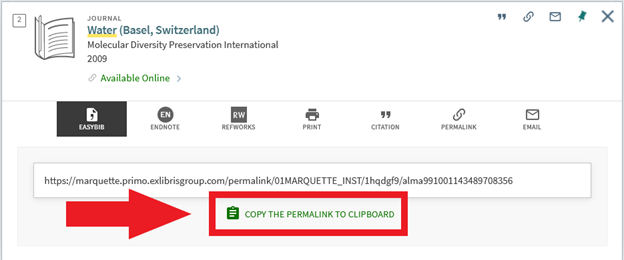
Click Copy the Permalink to Clipboard.
Use the pushpin to save search results to your favorites. Sign in to save your favorites for future use.
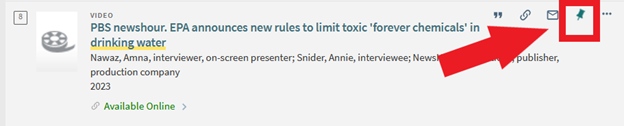
Access your favorites by clicking the pushpin in the upper right corner.
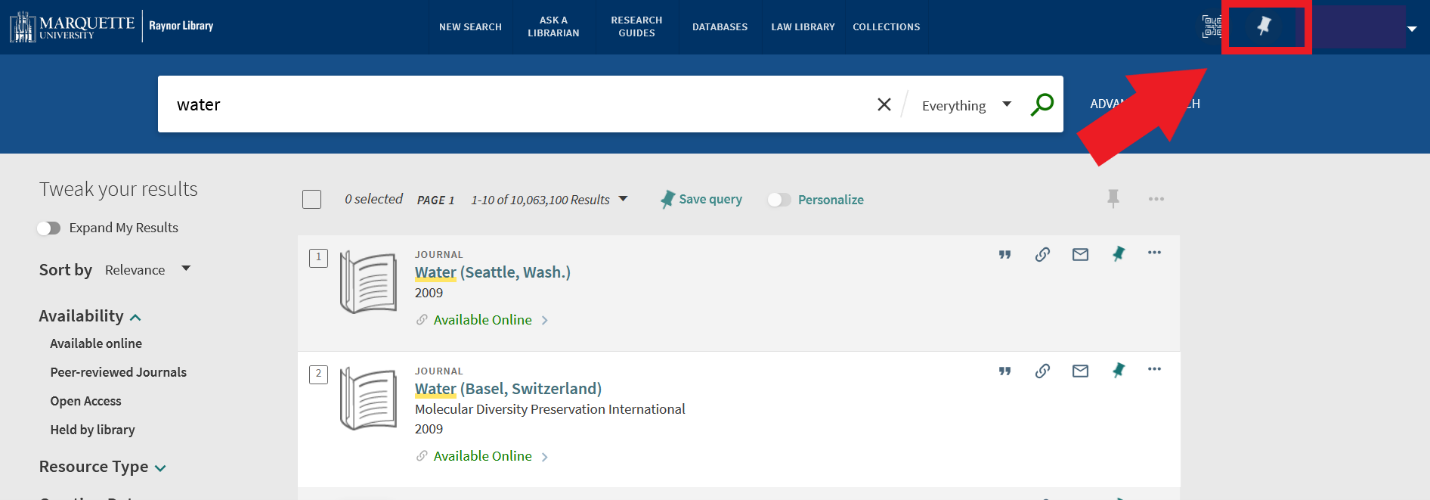
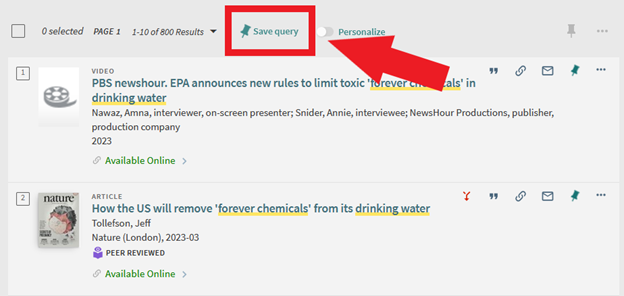
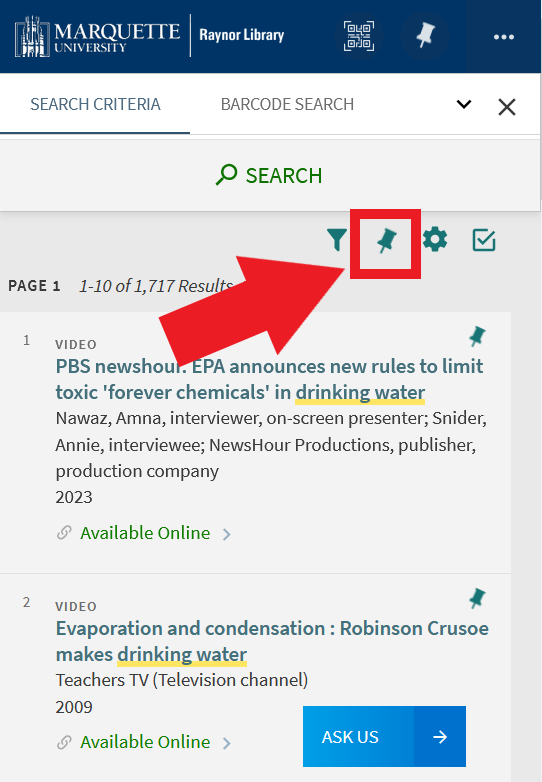
Saving a query allows you to run the same search in the future and continue reviewing results.
Desktop view:
Mobile view:
Access your saved searches by clicking the pushpin in the upper right corner.
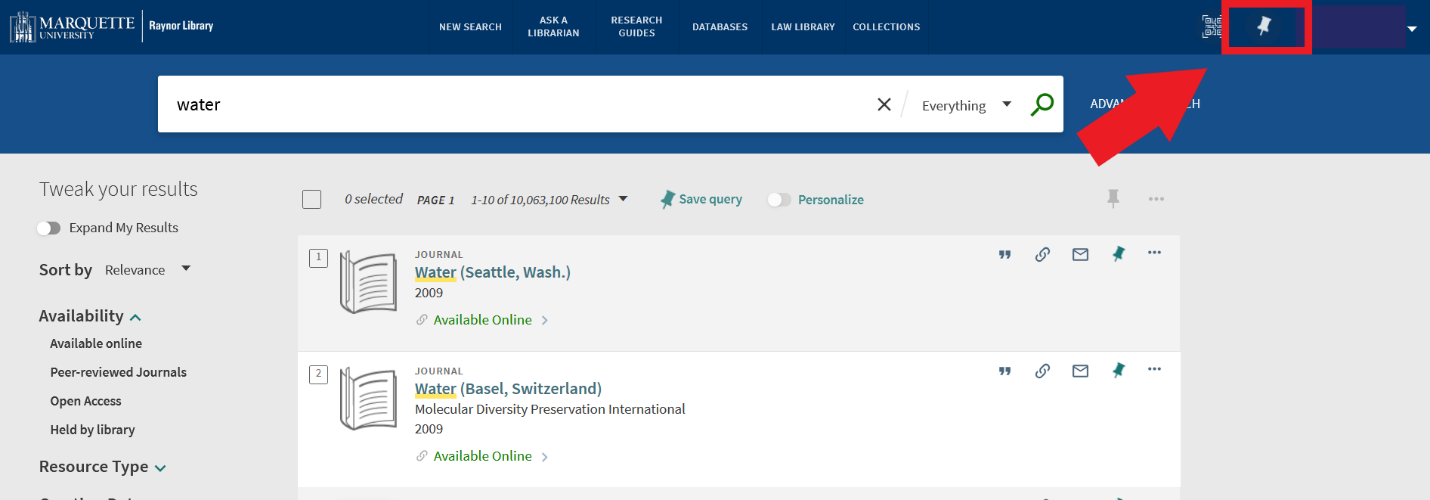
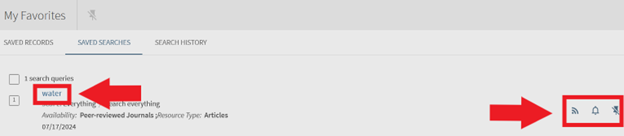
Select Saved Searches

Click the keywords from your search to run the search again. Click the wifi symbol to create an RSS feed. Click the bell symbol to receive an email alert when new results are added. Click the pushpin with the strikeout to remove the search from your favorites.
To review your history of items you’ve checked out and returned, sign into your library account and select Loans.
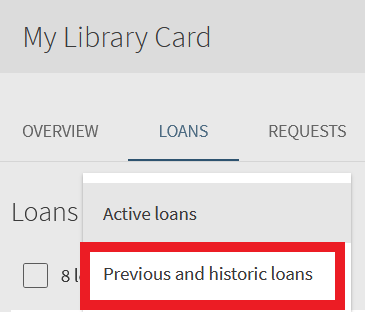
Locate the Active Loans drop-down menu.

Select Active Loans and change it to Previous and Historic Loans.
https://libguides.marquette.edu/dissertationdatabases