














Use the Document Inspector to Remove Hidden Data
To open the Document Inspector, click File > Info > Check for Issues > Inspect Document. The Excel Document Inspection window shown below opens up.
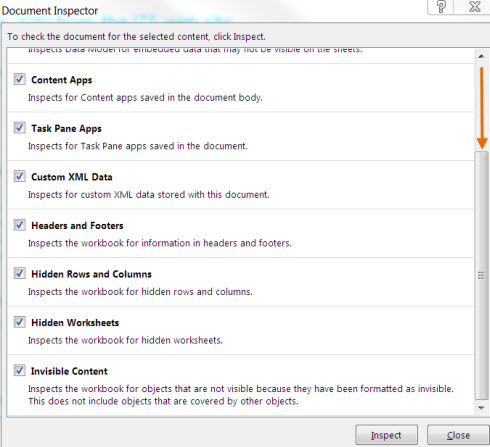
Click Inspect to identify hidden content, and then click Remove All to remove the item of your choice.
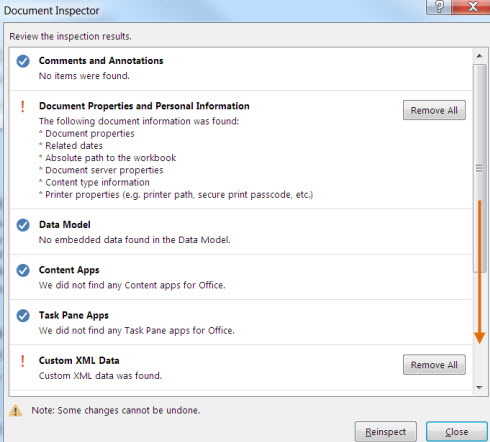
After you have completed these steps, save the document, and the spreadsheet will not contain the hidden data that you have removed.
Edit Document Properties, Personal Information and Other Document Data
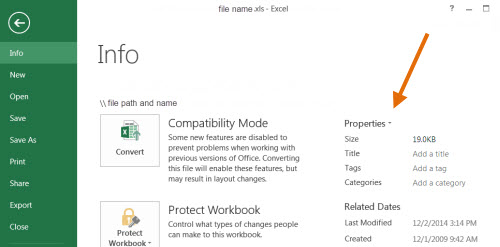
To selectively edit or remove document data, click File > Info > Properties. Click Show All Properties. Delete or edit information.
Selectively Remove or Edit Comments
Microsoft Excel offers the ability to add comments to workbooks. Typically, comments contain the name of the person who created them, and they appear as a small red triangle in the upper-right corner of a cell.
To view a comment, click the cell and the comment will pop up.
To delete a comment, right-click the cell containing the comment, and then click Delete Comment on the shortcut menu.
Selectively Display Hidden Cells, Rows, and Columns
In Microsoft Excel, it is possible to hide entire rows and columns of cells within a worksheet.
To unhide all of the cells in a worksheet:
- Click the Select All button, in the upper-left corner of the worksheet or press Ctrl + A.
- Click the Home tab > Format (in the Cells group) > Hide & Unhide > Unhide Rows or Unhide Columns.
- All cells are now visible.
Selectively Display Hidden Worksheets
Workbooks in Microsoft Excel may contain hidden sheets that contain information.
To unhide sheets:
- Click the Home tab > Format (in the Cells group) > Hide & Unhide > Unhide Sheet.
- Click the name of the sheet you want visible and click OK.
- The sheet is now visible.
Remove Tracked Changes manually or selectively
Microsoft Excel includes a Track Changes feature that allows you to track changes made to a shared workbook by a user. To remove tracked changes from a workbook, follow these steps:
- Click the Review tab > Track Changes (in the Changes group)> Accept/Reject Changes.
- Make your selection concerning each change that has been saved on the document. You must click Accept or Reject for a change before advancing the next change.
- Accept or reject all changes by clicking Accept All or Reject All.
Learn more about Tracking and Reviewing Changes at microsoft.com.
Back to Removing Hidden Data Home
TRAINING & DOCUMENTATION
MORE ABOUT OUR SERVICES
Computer Labs & Smart Classrooms
Help with Computers & Printers
