

-
- Online Course Development
- Online Program Development
- Program Guidelines
- Accessible Technology
- Center for Teaching and Learning
- Contact Us
- For faculty and staff questions about online teaching or course design, submit your questions to the Learning Technologies portal.
Walk-in Consultation Hours for Faculty and Staff
Monday-Friday 9 a.m. - 3 p.m.
Room 326 Raynor Library
For more in-depth questions and course consultations, schedule an appointment with one of our Instructional Design and D2L Specialists
PROBLEM WITH THIS WEBPAGE?Report an accessibility problem
To report another problem, please contact emily.newell@marquette.edu.
Add Work-to-Do widget to the course home page
The Work To Do widget in Brightspace helps students keep track of their workload. If enabled by the instructor, the students will be able to manage deadlines and prioritize their work for assignments, quizzes and discussions.
For the widget to function accurately, instructors should consistently enter and maintain due dates for all course activities. Only items with assigned due dates will appear in the widget, so keeping these dates up to date is essential for providing students with a reliable overview of what is due in the course.
To add the Work To Do widget, instructors must:
- Create a copy of the course homepage.
- Add the Work To Do widget to the copied homepage.
- Set the updated homepage as active.
Step 1: Create a copy of the course homepage
- From the Course Home page, scroll to the bottom of the page and select Manage Homepages from the ellipsis menu.
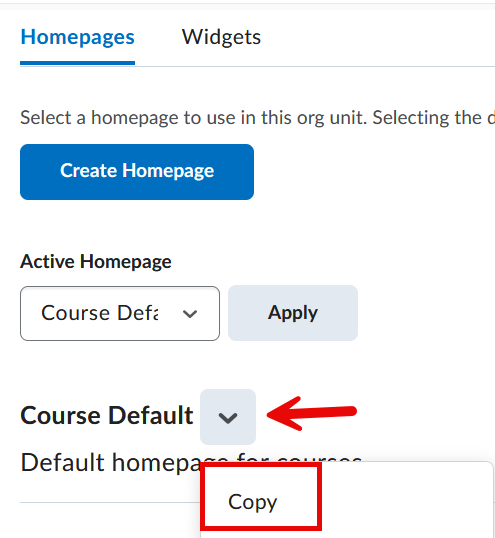
- A list of homepages should appear. Select Copy from the active Course Default homepage drop-down menu.
- Open the new homepage (e.g., Course Default - Copy ).
- Rename the homepage to something descriptive (e.g., Course Home - course name).
Step 2: Add the Work To Do Widget
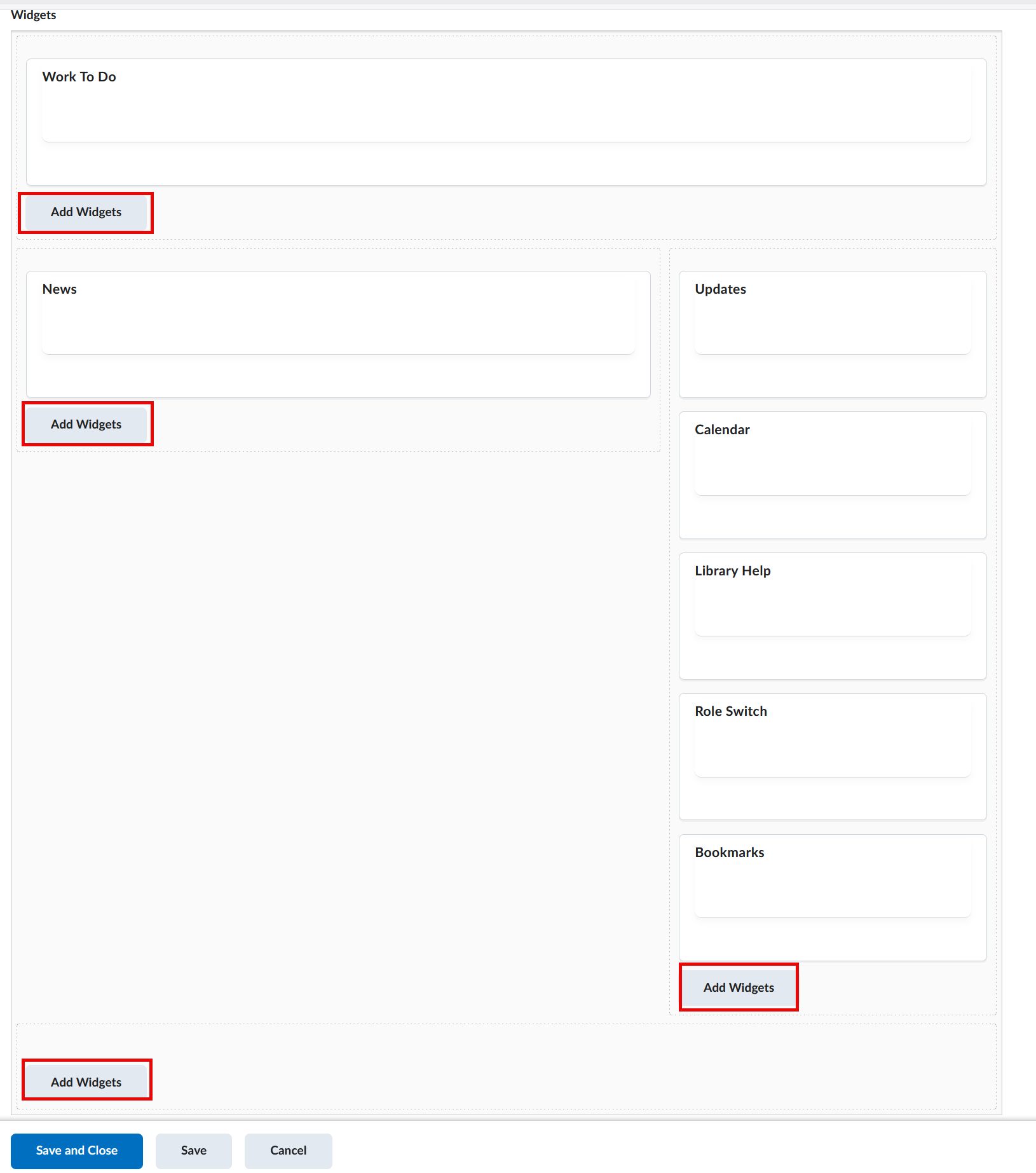
- On the homepage list page, scroll past the Layout section to view the various options for the location of the widget.
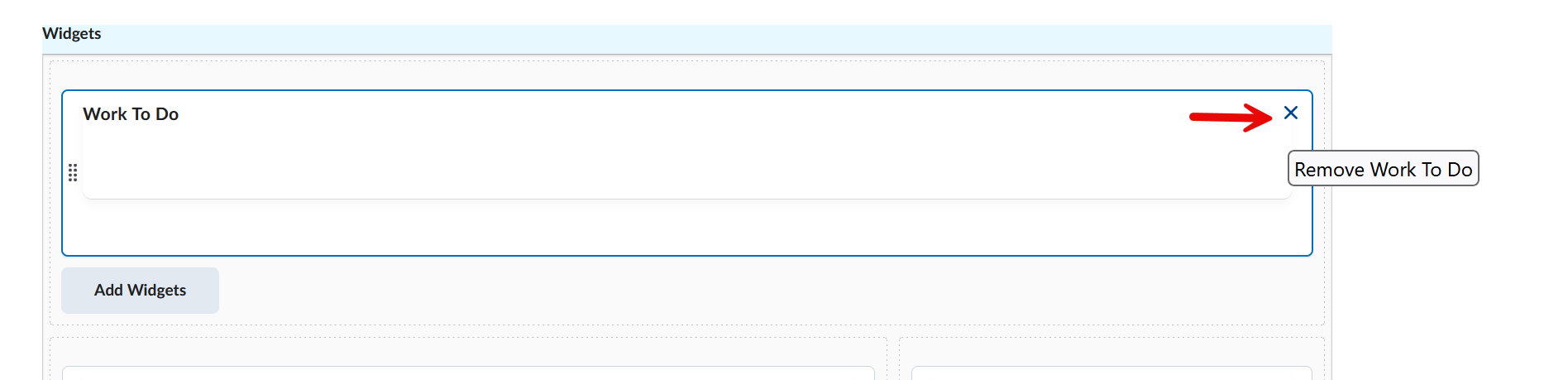
- Choose one of the Add Widgets buttons (depending on where you want the widget to appear). If you add a widget by mistake, hover over the widget to select the 'X' in the upper right-hand corner to remove it.
- From the list of widgets (the list is in alphabetical order), scroll down to the bottom of the list and select Work To Do.
- Click the Add button.
- Select Save and Close to return to the homepage list.
Step 3: Set the Homepage as Active
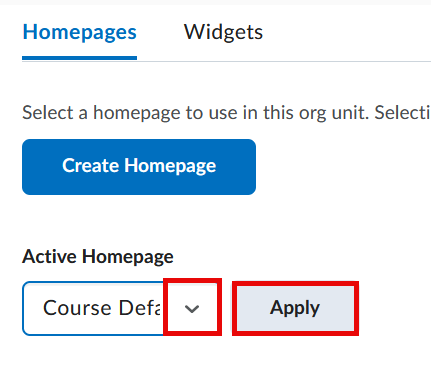
- In the Active Homepage drop-down menu, select the newly edited homepage (e.g., Course Home - course name).
- Click Apply to make it the homepage students see.
Step 4: Test to see the widget
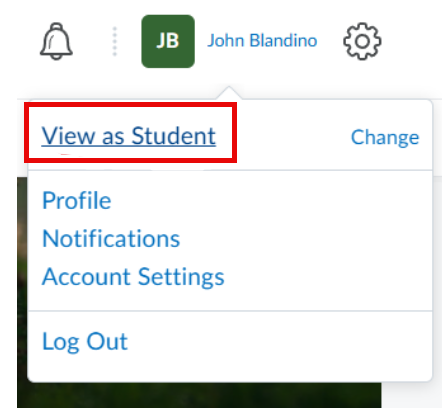
Remember, the Work To Do widget is a tool for students and it will not appear on a faculty homepage. To view the widget as a student, go to the upper right-hand corner of the screen, select your name, and choose View as Student from the dropdown menu.

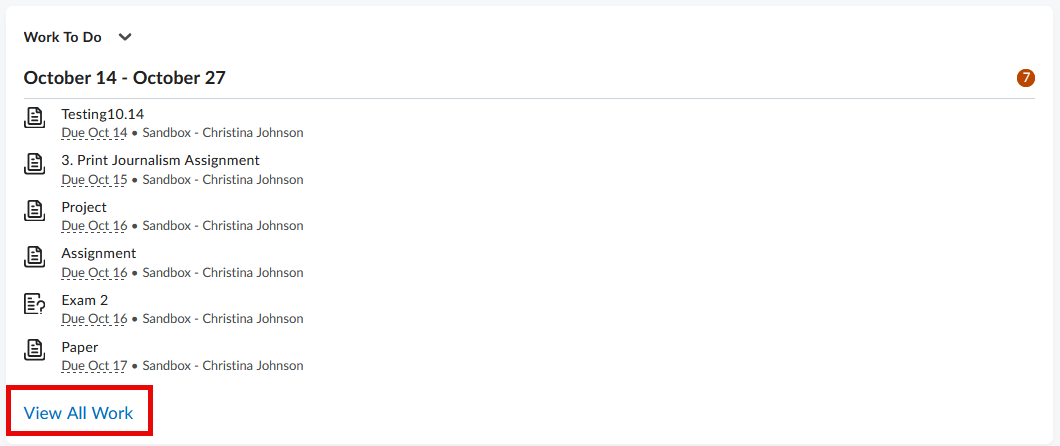
Note: If more than six activities appear in the Work To Do list, the students can click View All Work to see and access all activities.
Video Tutorial
Add Work To Do to the course homepage