

-
- Online Course Development
- Online Program Development
- Program Guidelines
- Accessible Technology
- Center for Teaching and Learning
- Contact Us
- For faculty and staff questions about online teaching or course design, submit your questions to the Learning Technologies portal.
Walk-in Consultation Hours for Faculty and Staff
Monday-Friday 9 a.m. - 3 p.m.
Room 326 Raynor Library
For more in-depth questions and course consultations, schedule an appointment with one of our Instructional Design and D2L Specialists
PROBLEM WITH THIS WEBPAGE?Report an accessibility problem
To report another problem, please contact emily.newell@marquette.edu.
Subscribe to D2L Calendar
Subscribe to iCal feed
Subscribing to a D2L iCal feed allows you to view D2L Calendar events in an external calendar application, such as Outlook or Google Calendar. Updates to D2L Calendar events are reflected in the subscribed calendar.
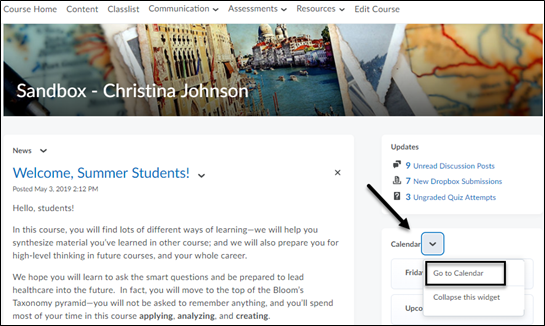
- Click on the D2L calendar widget drop-down menu to select Go to Calendar button.
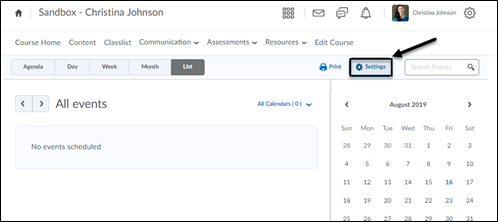
- Click on Settings and click the check box next to Enable Calendar Feeds and click the Save button. (This enables a private address that can be used to subscribe to your calendars via an iCal feed.)
- Click Subscribe.

- Copy and paste the URL generated in D2L into your calendar application (e.g., Outlook, Gmail) to subscribe to events in the D2L calendar. Then, click Close.
Note: The default is set for All Calendars. Click the drop-down menu to select a specific course calendar if you do not want access to all your course calendars.
Paste URL into Outlook on the web Calendar
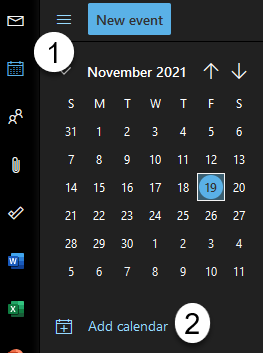
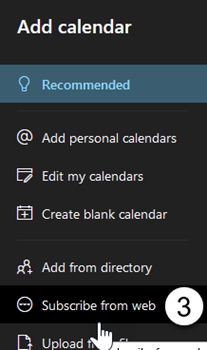
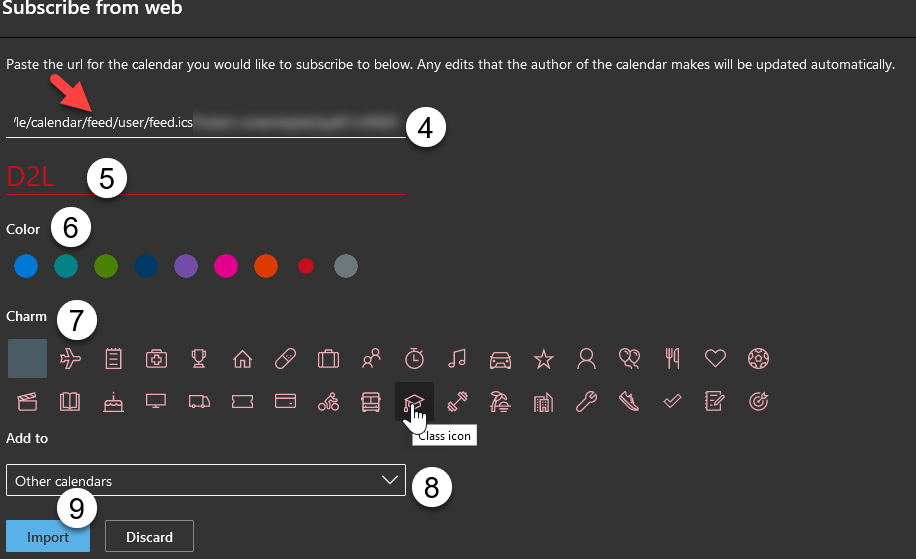
Open Microsoft Outlook on the web and click on the calendar icon [1] and select Add Calendar [2] and select Subscribe from Web [3]. Paste the URL from D2L [4] and enter a calendar name [5]. Select a color [6]. Choose a charm [7]. Select calendar to add to. The default is Other calendars, but this an be changed to My calendars[8]. Click Import[9]. Find your D2L calendar under selected area (e.g., Other calendars).
Paste URL into Google Calendar
- Select the gear in Google Calendar to select Settingsunder the drop-down list.

- Select From URL from the Add Calendar drop-down menu. Paste the D2L URL into the field and select Add Calendar.
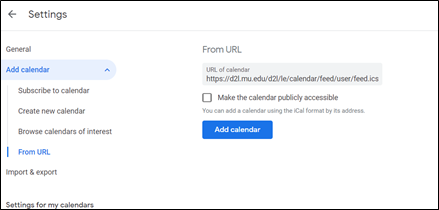
- The D2L link should appear under the Other calendars section in Google Calendar.
Note: Updates to subscribed calendars may not appear immediately. The refresh frequency is determined by the external calendar application.
