

-
- Online Course Development
- Online Program Development
- Program Guidelines
- Accessible Technology
- Center for Teaching and Learning
- Contact Us
- For faculty and staff questions about online teaching or course design, submit your questions to the Learning Technologies portal.
Walk-in Consultation Hours for Faculty and Staff
Monday-Friday 9 a.m. - 3 p.m.
Room 326 Raynor Library
For more in-depth questions and course consultations, schedule an appointment with one of our Instructional Design and D2L Specialists
PROBLEM WITH THIS WEBPAGE?Report an accessibility problem
To report another problem, please contact emily.newell@marquette.edu.
Manage Groups - new experience
Instructors can now opt-in to the new Manage Groups user interface to help with managing course groups efficiently along with easily identifying the number of groups, enrollment type and associated activities. Instead of viewing group categories individually, instructors can see all group categories on a single page.
Access the new Manage Groups experience
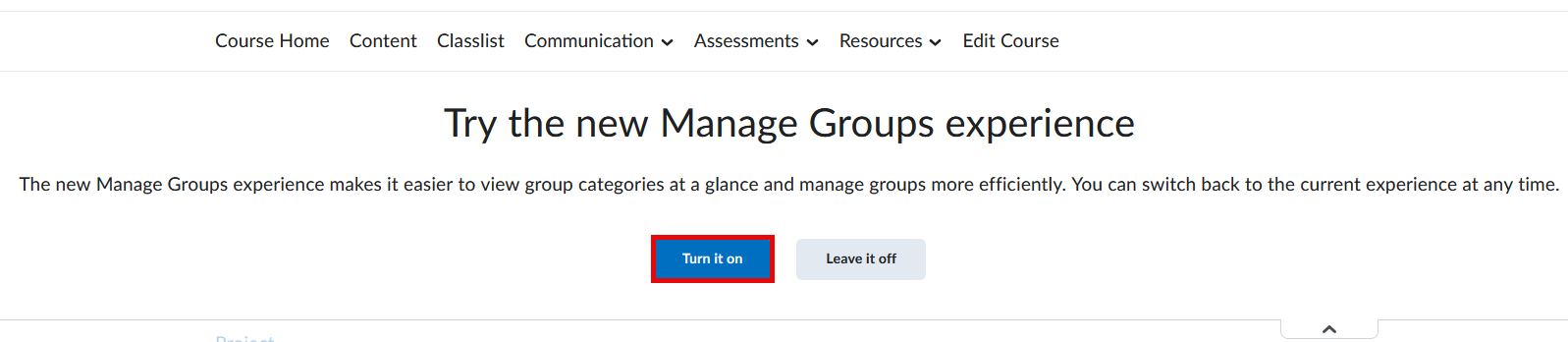
- Go to Communication on the main navigation and select Groups.
- When prompted, select Turn it on to enable the new Manage Groups experience.
- (Optional) Once on, you can switch back to the current experience by selecting the dropdown menu in the upper-right corner of the page and choosing Turn it off.
New Manage Groups Interface
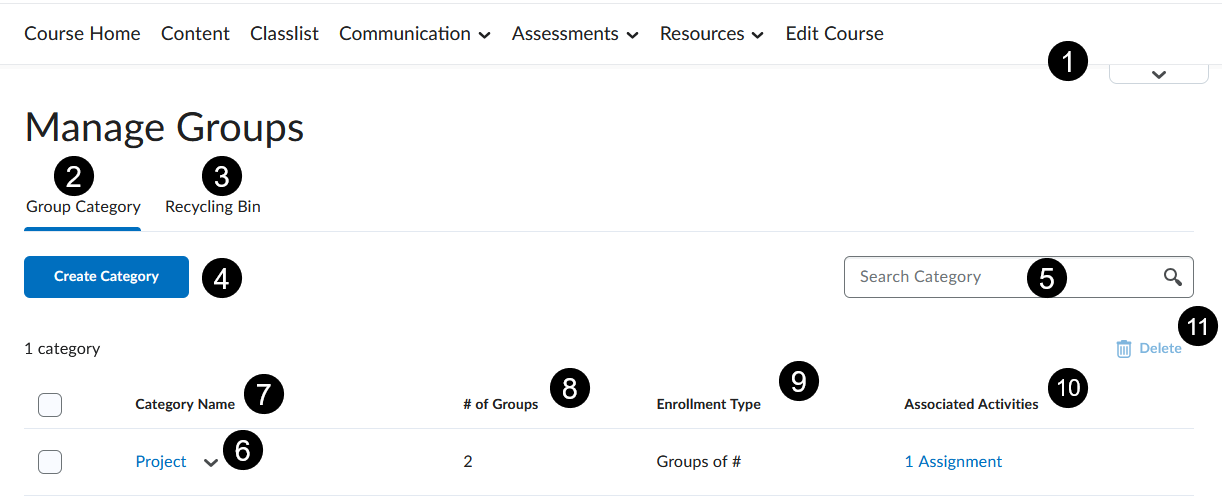
This list references the numbered screenshot above.
- Dropdown menu - Located in the upper-right corner of the page. Select the dropdown menu to opt-in or out of the new Manage Groups experience by either selecting Turn it on or Turn it off.
- Group Category tab - Displays all group categories and allows you to create new categories.
- Recycling Bin tab - Find all deleted group categories and groups. Restore the ones that were deleted in error.
- Create Category - Create a new group category. The creation process is the same as in the current Groups experience.
- Search bar - Search for a group category by name. Select the X to clear the search and display all group categories.
- Dropdown menu for category name - Lists the following options:
- Edit Category
- Add Group
- Manage Members
- Import
- Export
- Delete
- Category Name - Column that lists all of names of the group categories. To edit group names, click on the Category Name to access the Edit Group Names button.
- # of Groups - Column that lists the number of groups within each group category.
- Enrollment type - Column that lists the enrollment type selected upon creation. The user has the option to select from seven enrollment types. Once selected, the enrollment type cannot be changed after the category is created.
- Associated activities - Column that lists the associated activities (Dropbox, Discussions, Lockers).
- Delete - Check the group categories that you would like deleted, then select the Delete (trashcan) icon to delete them. (Note: Deleted groups can be restored. Find them under the Recycled Bin tab.)