

-
- Online Course Development
- Online Program Development
- Program Guidelines
- Accessible Technology
- Center for Teaching and Learning
- Contact Us
- For faculty and staff questions about online teaching or course design, submit your questions to the Learning Technologies portal.
Walk-in Consultation Hours for Faculty and Staff
Monday-Friday 9 a.m. - 3 p.m.
Room 326 Raynor Library
For more in-depth questions and course consultations, schedule an appointment with one of our Instructional Design and D2L Specialists
PROBLEM WITH THIS WEBPAGE?Report an accessibility problem
To report another problem, please contact emily.newell@marquette.edu.
Single Session Quiz Setup
Set up a quiz session that requires students to remain on the same device or browser throughout the quiz.
If a student attempts to access the quiz outside the single session, the following message will appear: "This attempt is in progress and restricted to a single login session. Please contact your instructor for assistance."
- Go to Assessments > Quizzes.
- Locate the quiz and select Edit from the dropdown menu.
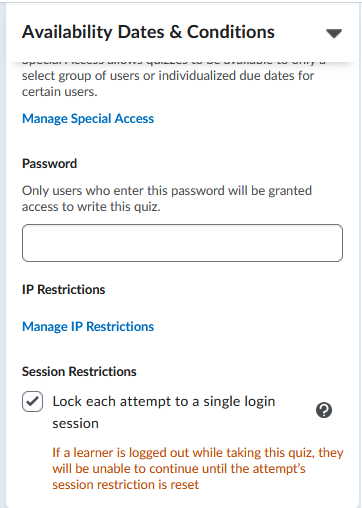
- Expand Availability Dates & Conditions.
- Under Security Restrictions, check Lock each attempt to a single login session.
- Click Save and Close.
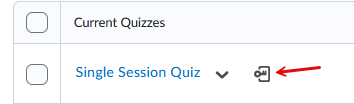
- On the Manage Quizzes page, an icon will appear next to the quiz name to verify setup.
Note: If a student is logged out while taking the quiz, you will need to reset their in-progress quiz attempt.
Reset Quiz Attempt
If a student is locked out during a quiz with single session restriction setup, you will need to reset the quiz to allow the student to continue. This restores the student's access to the quiz without deleting their existing attempt.
- Go to Assessments > Quizzes.
- Locate the quiz and select Grade from the dropdown menu.
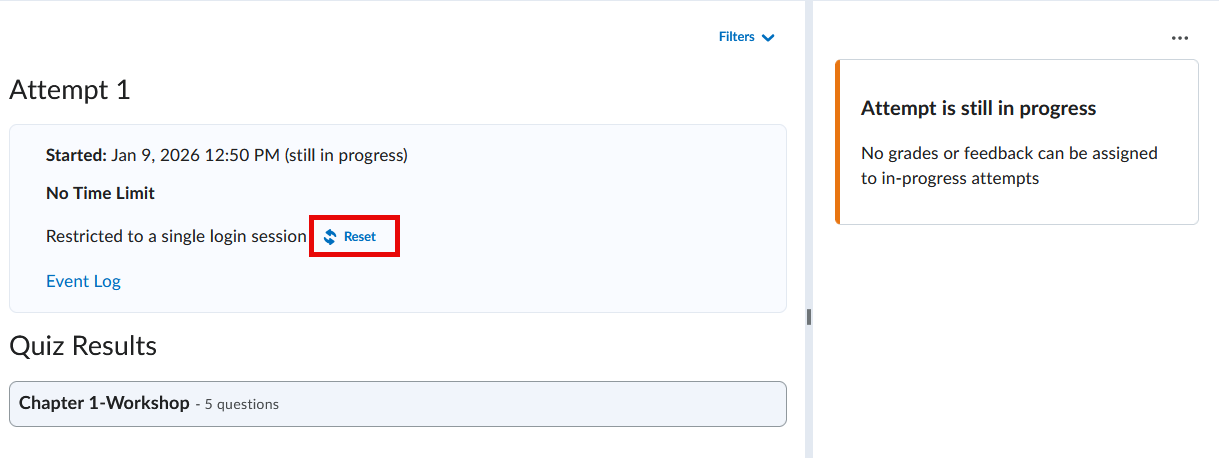
- Click the student's attempt link.
- Select Reset at the top of the page (located below the time limit or above the event log).
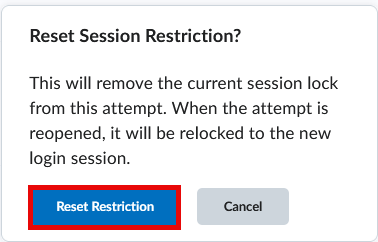
- In the confirmation window, select Reset Restriction.